PERSONAL AI FOR MAC · DEVELOPMENT PREVIEW
Vesper
One AI, yours alone.
Call it up with ⌥ Space. Vesper remembers what you choose to keep, carries work forward, and is active on one paired device at a time.

DEVELOPMENT UPDATE · 2026-11-15
What changed in the development build
A story that can keep going
Work from a Story Library and chapter plan. Each part can have its own reference files, and the next chapter reads the previous one in full.
See the novel workflowA research team can divide the work
Pair the team, assign research stages, and see each member’s progress in the shared project.
See research teamsA guide that follows the evening star
The in-app guide starts at dusk and ends at dawn, then points you to the tools you want to try. WORD and COLLAGE have their own walkthroughs.
See the WORD walkthrough01 / One presence
The same Vesper, wherever you call it.
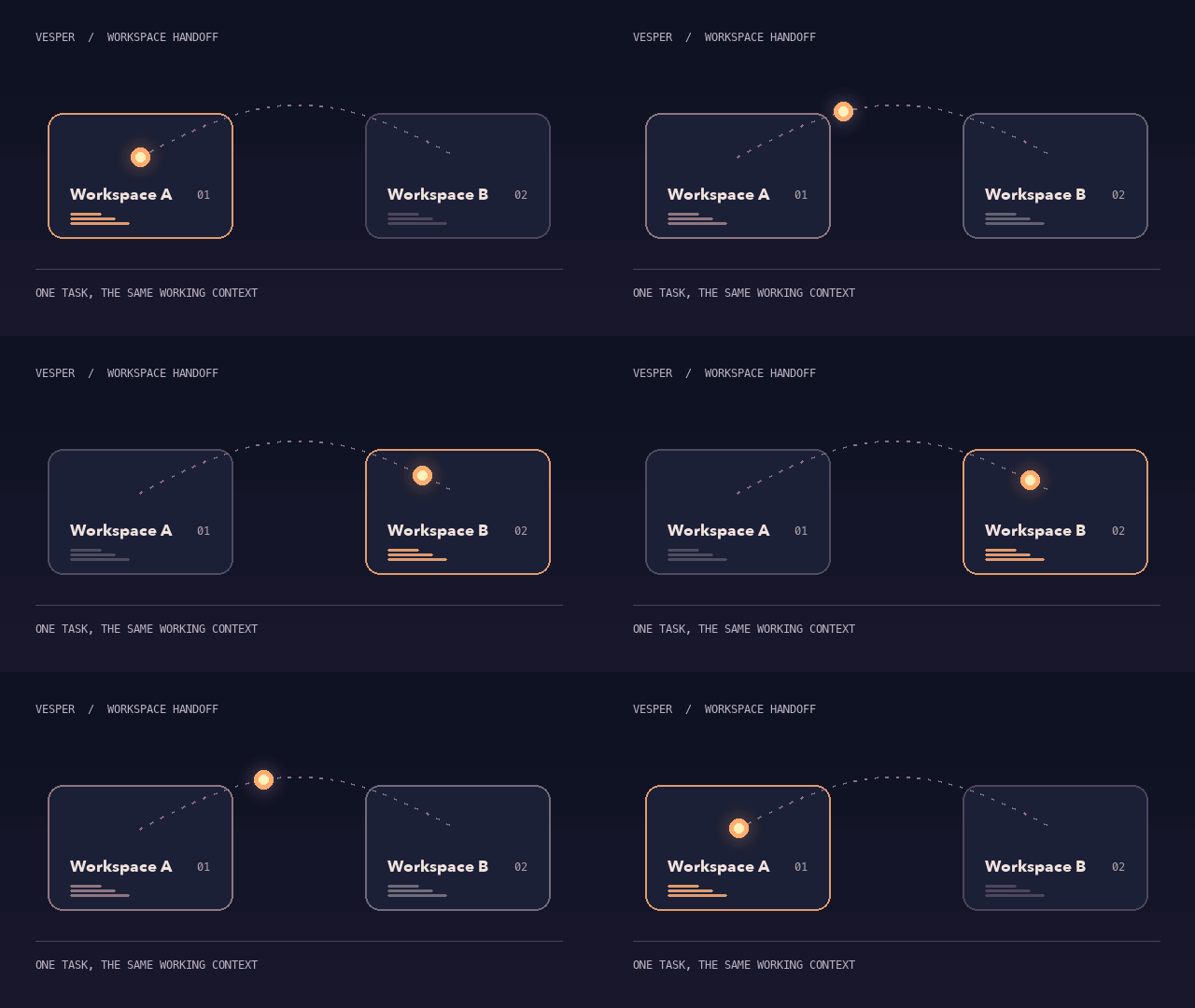
Vesper appears as a small light that breathes and blinks. When you call it to another paired device, the light leaves the first device and appears on the second. The first keeps a trace that tells you where it went.
The name comes from the evening star. The evening star and the morning star are both Venus. Vesper keeps that idea from its earlier name, Ruyi (如一): the place changes, and it is still the same one.
See the handoff in motion- First meeting
- Open the Mac preview, give Vesper a name, then use Touch ID to connect it to you. Press ⌥ Space to bring it back to your Mac.
- A different device
- Use a pairing code to connect a browser view. The active light moves there, while the first device shows where it went. A browser view can demonstrate the handoff without an iPhone app.

View workspace handoff animation (GIF)
02 / Traceable memory
Ask what it remembers. See where it came from.
Vesper keeps conversation records, individual memories, and topic pages as separate layers. A topic page links back to the memories it draws on and marks information that is confirmed, uncertain, or out of date. Correct a memory and the pages that cite it update with it.
- “Remember: I don’t eat cilantro.”
- Save it as something you explicitly told Vesper. You can also mark a memory private.
- “Forget cilantro.”
- Stop bringing it up on its own. You can restore it later.
- “Permanently delete cilantro.”
- After identity confirmation, Vesper destroys the key protecting that memory.
Topic pages can show whether a detail is confirmed or just an impression. Vesper’s periodic review groups recurring people or projects into topics; you can correct the memory or tell it to stop bringing something up.

03 / Long tasks & Roundtable
Hand it a job you can come back to.
Pick a workspace and give Vesper a goal. It can draft a plan for approval, keep working in the background, and show its steps, file changes, and intermediate results. Send a note to guide the next step, queue a follow-up, or stop the task and keep what is already done.
Use Roundtable when a question benefits from disagreement. Give the members an issue to discuss; Vesper brings back a report with the main arguments, remaining disagreements, and decisions for you. Use Workshop to save recurring steps with a review point in the middle.
- A team for a larger task
- Split a research question across roles. Review the budget and team before it starts; follow which findings have been checked along the way.
- A daily view that follows your rules
- Bring pending reviews, paused tasks, and upcoming study sessions together. You set how often Vesper nudges you and which actions it may take.
- Pick up a saved task
- Plans, steps and file changes stay with the task. Use its notes to see what was tried, then send a change of direction or go back to an earlier checkpoint when available.
- Save a recurring workflow
- Workshop connects steps such as preparing a weekly report, asking Roundtable for a critique, and awaiting your review. Saved workflows have their own run records.

04 / Research, learning & writing
Choose a workspace for what you do.
Start from the materials you already have. Vesper can help you work through them and produce notes, a document, or editable slides you can keep working on.
LANCER SCIENCE
Make a bold guess. Put it to the test.
Novel studio
Make every clue count.
LANCER WORD
Your words. Your call.
LANCER READING
Read for understanding.
LANCER COLLAGE also brings your course notes, practice questions, and review plans together in a learning workspace.
In LANCER COLLAGE, add slides, notes or past exams to a course. Ask the teacher to explain a problem one step at a time, make a practice set, or turn the material into a lesson. Save feedback and review plans with the course.

05 / Identity & permissions
You decide what leaves your desk.
If Vesper is unsure who is at the keyboard, it conceals the private conversation and asks you to confirm your identity. On a Mac it can use Touch ID. A visitor gets only what you have made available to them.
For actions like sending an email, Vesper shows the recipient and the proposed content before asking for your approval. You can configure model providers and tools, and decide which actions should stop for review.
- Connect the tools you use
- Choose a model provider and backup, then add the skills or connectors you need. The Switch Center can keep settings for compatible coding tools together; review what is being connected before using it.
- Review what will be sent
- Vesper can show a draft before acting. For a visitor, choose the information they may see. Sending private information or confirming destructive changes calls for a separate review.

DEVELOPMENT PREVIEW
Available in the Mac development build.
With the development build installed, open Vesper from Applications, complete the first meeting with Touch ID, then call it back with ⌥ Space. Device handoff can be demonstrated with the Mac app and a paired browser view.
Public download, registration, and an iPhone app are not currently available.